Grouped the same way as the switches in the extension. Every feature has its own switch, and none of them edits anything in your ClickUp.
Overall layout
Hide ClickUp AIToolkit
Removes ClickUp Brain, AI Chats and the AI prompts from your screen, so ClickUp shows your work and nothing else.
It is a set of style rules added to the ClickUp page in your browser. Nothing is switched off in your workspace, and your teammates see ClickUp as before.
Turn the switch off and the AI entries come back.
Hide upgrade promptsToolkit
Hides the upgrade banners and trial offers that ClickUp shows inside the app.
Like Hide ClickUp AI, it only hides elements on your screen. Your plan, your billing page and the features you pay for are untouched.
Views
Descriptions in List viewPro
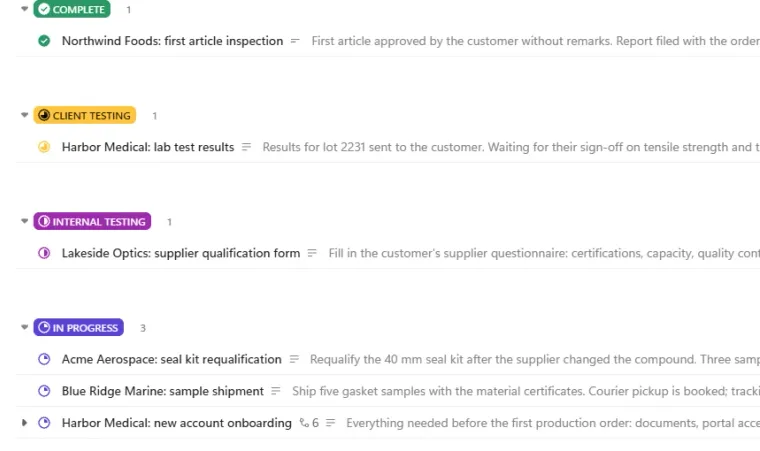
Shows the start of each task description in List view, in grey, on the same line as the task name. You read what a task is about without opening it or hovering over it.
ClickUp marks a task that has a description with a small icon next to its name and shows the text only on hover. This feature puts the first 300 characters after that icon and the task's tags, and cuts them to the width of the Name column: make the column wider to read more.
Descriptions are not part of the page ClickUp draws, so this feature needs a ClickUp connection. The extension loads them from ClickUp's API straight into your browser, the whole list in a few requests, and nothing is sent to us.
It is read-only. After you edit a description, the new text appears when you close the task.
Puts a small purple message icon after the name of a task in List view, and on its card in Board view, when someone else commented on it since you last opened it. You see where the conversation moved without opening every task.
Open the task and the icon goes away. Your own comments never mark a task, and nothing from before you switched the feature on is marked.
ClickUp does not tell other apps what you have read, so the extension remembers in your browser when you last opened each task. A comment you read on your phone or in another browser stays marked here until you open the task in this one.
It needs a ClickUp connection. The extension reads the open list from ClickUp's API and checks the comments only of tasks that changed since you saw them. Nothing is sent to us, and nothing is marked as read in ClickUp.
It works on lists, saved List views and Board views.
Every relationship table in a task splits into an Open group and a Closed group. Closed tasks start collapsed, out of the way.
Sort by any column, or filter by due date, status, assignee or a custom field, with a count next to every choice.
ClickUp lists related tasks with no grouping, sorting or filtering of its own, which gets hard to read past a dozen rows.
The extension reads the table ClickUp has already drawn and rearranges its rows in your browser. It makes no request to ClickUp and changes nothing in the task.
Decides which statuses land in the Closed group of a relationship table. By default it follows the status type in ClickUp: Done and Closed statuses count as closed.
Open Closed statuses in the popup and tick or untick any status the extension has seen, for example to keep "On hold" with the open tasks. Reset to defaults puts it back.
Relationship summaryPro
Adds a progress bar and a count per status above every relationship table, so you see how far a project or an order is without counting rows.
Export CSV saves the table to a file on your computer.
The numbers are counted in your browser from the rows on the page. Nothing is sent to us or to ClickUp.
Reply threadsPro
Shows every reply right under its task comment, so a discussion reads top to bottom without opening each thread.
Replies are not part of the page ClickUp draws, so this feature needs a ClickUp connection. You approve it once, and the extension loads the replies from ClickUp's API straight into your browser.
No thread is opened and nothing is marked as read. If loading fails, the comments stay exactly as ClickUp drew them.
The same idea as reply threads in tasks, for ClickUp Chat: replies sit under each message in channels and direct messages, so a conversation reads in one pass.
It has its own switch and uses the same ClickUp connection. Replies load from ClickUp's API into your browser, and nothing is marked as read.
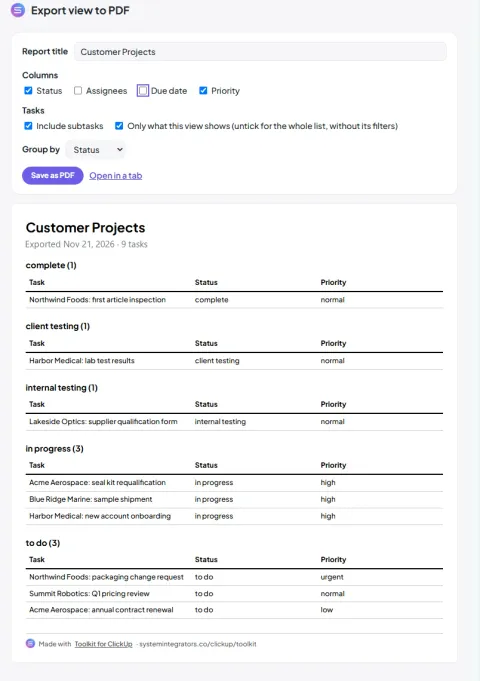
Turns the list or List view you have open into a clean report you can print or send to a client. Open the list in ClickUp, then press Open next to Export view to PDF in the popup.
A saved view keeps its filters. Choose the columns, including your custom fields, group by status, assignee or priority, and decide whether subtasks and closed tasks are included. The report carries your title, the date and the task count, and no Toolkit branding.
Save as PDF opens your browser's print dialog: pick Save as PDF as the destination. The report is drawn in your browser from ClickUp's API, so it needs a ClickUp connection, and nothing is sent to us.
It covers List view. A very long list is cut at a fixed number of tasks, and the page tells you when that happens.
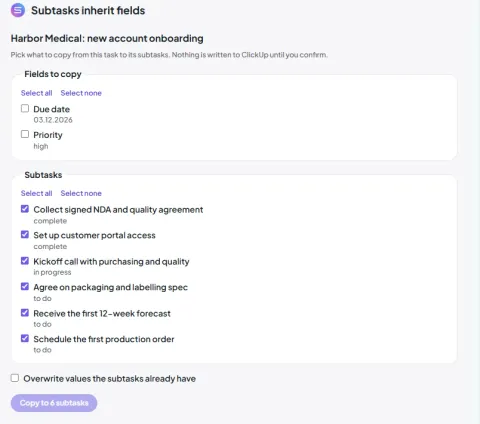
Copies field values from a task to its subtasks: assignees, due date, start date, priority, tags and your custom fields. Open the parent task in ClickUp, then press Open next to Subtasks inherit fields in the popup.
Tick the fields to copy and the subtasks to copy them to. Nothing is ticked for you, and nothing is written until you confirm.
A value a subtask already has stays as it is, unless you turn on overwriting. When the copy ends you get a line per subtask: what was copied, what was skipped and what ClickUp refused.
This is the one feature that changes data in ClickUp. It writes through ClickUp's API with your own connection, only to the subtasks you ticked, and only when you press Confirm. Formula, attachment, location and automatic progress fields cannot be copied.
Subtasks to checklistPro
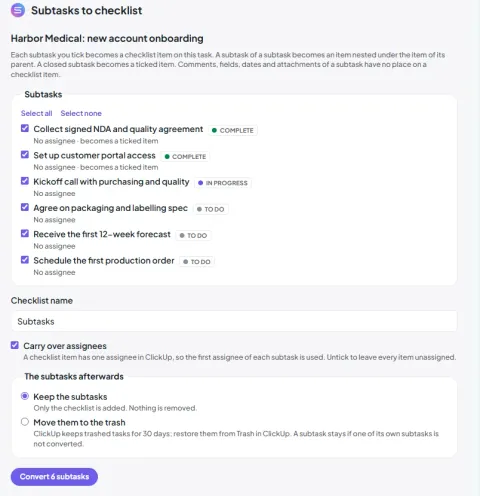
Turns the subtasks of a task into checklist items on that task. Open the task in ClickUp, then press the checklist icon in the Subtasks header, or Open next to Subtasks to checklist in the popup.
Tick the subtasks to convert. Each one becomes an item with its name and its assignee, a closed subtask becomes a ticked item, and a subtask of a subtask becomes an item nested under its parent's item. Put the items into a new checklist with a name you choose, or into a checklist the task already has.
A checklist item in ClickUp has one assignee, so the first assignee of a subtask is used, and a switch leaves every item unassigned. Comments, custom fields, dates and attachments of a subtask have no place on a checklist item and are not carried over.
You decide what happens to the subtasks on every run: keep them, or move them to ClickUp's trash, where they can be restored for 30 days. Nothing is written until you confirm, a subtask is trashed only after its item exists, and you get a line per subtask when the run ends.
ClickUp already converts a checklist item into a task or subtask by itself; this tool covers the other direction.
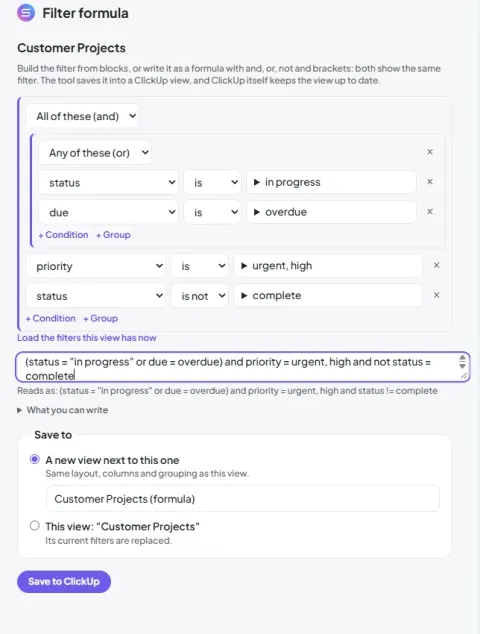
Builds a filter with and, or, not and brackets and saves it into a ClickUp view. Open a List view, then press the funnel icon in its toolbar, or Open next to Filter formula in the popup.
Put the filter together from blocks: a group is "all of these" or "any of these", a group can sit inside a group, and each row is a field, a comparison and its values picked from your list. Or write it as text, for example (due = overdue or due = next7) and priority = urgent, high and not tag = home. Blocks and text always show the same filter.
It works with status, priority, assignee, tag, the task dates and the custom fields of the list: dropdowns and labels by option, people, dates, checkboxes, numbers with more than and less than, and text with contains. Any custom field can also be checked for set or empty.
The filter is saved as a new view next to the open one, or into the open view. ClickUp itself runs it, so the view stays live, can be edited in place and is shared like any other view. The tool checks what ClickUp stored: if a condition was dropped, your old filters are put back.
ClickUp's own Filters panel shows only the first group of such a filter. Change it in the tool, which reads the filters of the view back whenever you open it.
One page with the open tasks assigned to you in every ClickUp workspace you connected. Built for freelancers and agencies who work inside several client workspaces.
Tasks are grouped as Overdue, Today, Tomorrow, This week, Later and No due date, or by workspace. Hide a workspace with one click, and click a task to open it in ClickUp.
It is read-only: tasks load from ClickUp's API into your browser and nothing is changed or marked as read.
ClickUp shares only the workspaces you tick on its consent screen. If one is missing, disconnect ClickUp in the popup, connect again and tick every workspace.
Makes ClickUp smaller or larger, from 80% to 125%. 100% is ClickUp as it is.
Smaller text fits more rows and columns on a laptop screen; larger text is easier on a big monitor. It applies to ClickUp only, not to your other tabs.
Background colourToolkit
Replaces ClickUp's plain background with a colour you pick: one of the presets or any colour of your own.
The presets follow your ClickUp theme, light ones for the light theme and dark ones for the dark theme. A colour that is too light or too dark for your theme is not applied, and the popup says so.
Puts an image of your own behind ClickUp: a file from your computer, or the address of an image on the web.
The image sits under a see-through layer in the colour of your ClickUp theme, so lists, boards and tasks stay readable on top of it. While an image is set, it replaces the background colour.
One image can be used everywhere, and a Space can have its own: open the Space, then choose it in the list above the image buttons. In that Space its own image is shown, and everywhere else the general one.
A file is made smaller in the popup and kept in your browser only; it is not uploaded anywhere. An image given by address is loaded by your browser from that address. Remove takes the image away and the colour, or ClickUp itself, is back.
 Toolkit for ClickUp